
A hacked website can quickly become more than a technical problem. For an indian business, it can interrupt enquiries, online sales, customer communication and search visibility. Learning how to secure a WordPress website is therefore an important part of managing your website, not just something to think about after an attack.
The good news is that WordPress security does not have to be complicated. A strong security setup comes from several practical layers: secure accounts, updated software, reliable backups, HTTPS, sensible permissions, malware monitoring and secure hosting.
This guide explains how indian businesses can improve WordPress website security step by step, whether you run a local service business, professional practice, online store, trades business or growing eCommerce brand.
1. Why WordPress Website Security Matters for Indain Businesses
WordPress is used by businesses of all sizes, which makes security an important consideration for any organisation using the platform. Security problems can come from compromised administrator accounts, outdated plugins, vulnerable themes, stolen hosting credentials or malicious code added to a website.
The Indian Cyber Security Centre recommends that businesses take practical steps such as enabling multi-factor authentication, keeping software updated and maintaining regular backups. Its website-hardening guidance also specifically recommends securing website logins, updating CMS software and plugins, and backing up websites regularly.
What Can Happen When a Business Website Is Hacked?
A compromised WordPress website can experience problems such as:
- Unauthorised administrator accounts
- Malware injected into website files
- Spam pages appearing in Google
- Redirects to unrelated websites
- Suspicious pop-ups
- Defaced pages
- Stolen customer information
- Unauthorised changes to website content
- Fake payment or checkout pages
- Email abuse from the website server
- Website downtime
- Loss of customer trust
For an eCommerce website, the consequences can be even more serious because the website may process orders, customer details and payment-related information.
Security should therefore be treated as part of website maintenance rather than a one-time installation of a security plugin.
Why Businesses Need Website Security
Every businesses rely heavily on websites for enquiries, bookings, lead generation, online sales and customer communication.
Imagine a Sydney plumbing company whose website suddenly redirects visitors to a suspicious page. Or consider a Brisbane online retailer whose checkout stops working after malicious code is added.
The technical issue may only take hours to fix, but the commercial consequences can continue for much longer.
A secure website helps reduce avoidable risks and gives your business a better foundation for maintaining customer trust.
2. How to Secure a WordPress Website: Start With the Basics
Before installing several security plugins, start with the fundamentals.
A secure WordPress website should have:
- A supported WordPress version
- Updated plugins and themes
- Strong, unique administrator passwords
- Multi-factor authentication where available
- HTTPS enabled
- Regular off-site backups
- Secure hosting
- Limited administrator access
- Malware monitoring
- A firewall or web application firewall where appropriate
- Unused plugins and themes removed
- Appropriate file permissions
- A process for handling security incidents
The biggest mistake businesses make is looking for one plugin that will “secure everything”.
No single tool can protect every layer of a website.
Instead, think about WordPress security as a series of layers. If one layer fails, another layer should reduce the potential damage.
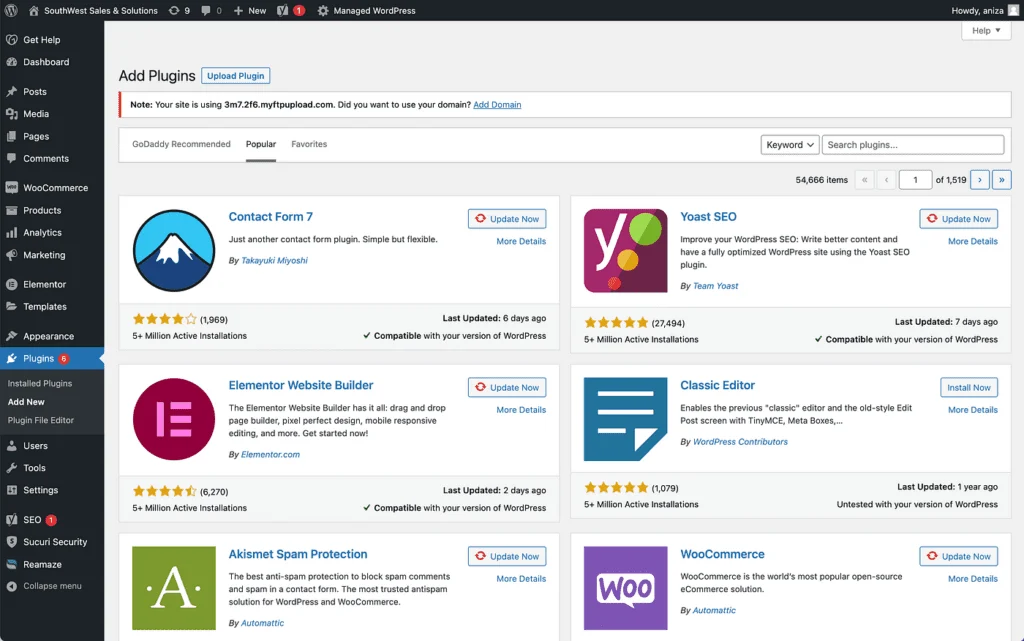
Remove Unused Plugins and Themes
Every installed plugin or theme adds another piece of software to your website.
If you installed a plugin six months ago for a temporary feature and no longer use it, there is little reason to keep it active or installed.
Remove software that you no longer need.
Do not simply deactivate an unnecessary plugin and forget about it. If you are confident it is no longer required, delete it after checking that removing it will not affect your website.
Change Default or Weak Settings
Review your website’s basic configuration.
Check:
- Administrator accounts
- User roles
- WordPress URL settings
- HTTPS configuration
- Backup settings
- Plugin settings
- Hosting access
- Database credentials
- Domain account security
- DNS account security
Your WordPress dashboard is only one part of the security picture. Your hosting account, domain registrar, email account and DNS provider also need strong security.
3. Keep WordPress, Plugins and Themes Updated
One of the most important steps in WordPress security is keeping your software updated.
WordPress releases security fixes, while plugin and theme developers may release updates that address vulnerabilities.
WordPress documentation specifically recommends keeping WordPress, plugins and themes up to date and choosing software that is actively maintained.
This matters because attackers can target known vulnerabilities in outdated software.
Enable Automatic Updates Where Appropriate
WordPress supports automatic updates for certain components, and many plugins and themes provide update controls.
Automatic updates can reduce the period during which known vulnerabilities remain unpatched.
However, automatic updates should not replace backups and monitoring.
For a critical business website, consider having a maintenance process that checks the site after major updates.
Test Updates Before They Affect Your Business
Updates can occasionally create compatibility problems.
For example, an old plugin may not work correctly with a newer WordPress version or PHP version.
For important websites, especially WooCommerce stores, consider using a staging environment.
A practical process is:
- Create a current backup.
- Test updates on staging.
- Check forms and important functionality.
- Check the mobile version.
- Test checkout if you run WooCommerce.
- Apply the updates to production.
- Check the live website again.
Do not leave security updates pending indefinitely because you are worried about compatibility. Instead, create a controlled maintenance process.
4. Use Strong Passwords and Multi-Factor Authentication
Your WordPress administrator account can provide access to almost every part of your website.
If an attacker obtains administrator credentials, they may be able to install plugins, change content, create accounts or modify website files.
That makes login security one of the most important parts of learning how to secure a WordPress website.
Use a Unique Administrator Password
Never reuse your WordPress administrator password for another service.
Use a long, unique password or passphrase and store it in a reputable password manager.
Your WordPress password should not be based on:
- Your business name
- Your domain name
- Your own name
- Your phone number
- Your birth date
- A common password
- A predictable sequence
Indian Cyber Security Centre guidance also recommends strong passwords or passphrases and MFA as practical protections for business accounts.
Enable MFA for Administrator Accounts
Multi-factor authentication adds another verification step when someone logs in.
For example, an attacker might obtain your password through phishing. MFA can provide another barrier because the attacker may not have access to the second authentication factor.
Enable MFA for:
- WordPress administrators
- Hosting accounts
- Domain registrar accounts
- Business email
- Cloud storage
- Backup services
- DNS providers
- Other systems connected to your website
Where supported, consider stronger authentication methods such as passkeys or authenticator-based MFA.
5. Protect Your WordPress Login Page
The WordPress login page is a common target for automated attacks.
Bots can repeatedly attempt usernames and passwords against /wp-login.php.
This does not mean you need to hide WordPress completely. Instead, add sensible protections around authentication.
Limit Login Attempts
A security plugin or web application firewall can help control repeated login attempts.
Depending on your setup, you may be able to:
- Rate-limit login requests
- Temporarily block repeated failures
- Challenge suspicious traffic
- Block known malicious IP addresses
- Monitor failed login attempts
Avoid extremely aggressive rules that accidentally lock out legitimate users.
Avoid Using “admin” as Your Username
If your website still uses a predictable administrator username such as admin, review your setup.
A unique administrator username removes one obvious piece of information from automated attacks.
More importantly, use strong credentials and MFA.
Do not rely on changing the username as your primary security measure.
6. Choose Secure WordPress Plugins and Themes
Plugins make WordPress powerful, but they also require maintenance.
Before installing a plugin, ask:
- Is it actively maintained?
- Is it compatible with your WordPress version?
- Does the developer provide regular updates?
- Does it have a clear support channel?
- Is it from a reputable source?
- Does the plugin actually solve a business need?
Check Plugin and Theme Reputation
Avoid downloading premium plugins or themes from unofficial websites simply because they are available for free.
“ nulled ” plugins and themes can contain malicious code, backdoors or other unwanted modifications.
Purchase premium software from the original developer or use reputable marketplaces.
Remove Abandoned Software
If a plugin has not been updated for a long time, investigate whether it is still actively supported.
An abandoned plugin may continue working today while becoming increasingly difficult to maintain securely.
If the functionality is no longer required, remove it.
If the functionality is important, look for a supported alternative and test it carefully before switching.
7. Install a WordPress Firewall and Malware Scanner
A security plugin can provide several useful functions, including malware scanning, login monitoring, firewall rules and security alerts.
However, choose your security tools carefully.
You do not need five overlapping security plugins.
A simpler setup with well-configured tools is usually easier to maintain.
Use a Web Application Firewall
A Web Application Firewall, or WAF, can filter potentially malicious requests before they reach your website or at the application layer.
Depending on your provider, a WAF can help defend against:
- Malicious requests
- Automated attacks
- Suspicious bots
- Common web exploits
- Repeated login attempts
- Some forms of abusive traffic
For higher-risk websites, a server-level or cloud-based WAF may provide another useful security layer.
Scan for Malware and Unauthorised Changes
Regular scanning can help identify suspicious changes.
Look for:
- Unknown PHP files
- Unexpected administrator accounts
- Modified core files
- Suspicious JavaScript
- Unrecognised plugins
- Unexpected redirects
- Spam content
- Strange scheduled tasks
- Unknown database entries
A security scan is most useful when it is combined with good backups, updates and monitoring.
8. Use HTTPS and Keep Your SSL Certificate Active
HTTPS encrypts traffic between visitors and your website.
It is particularly important when visitors submit information through:
- Contact forms
- Booking forms
- Login forms
- Account pages
- Checkout pages
- Newsletter forms
WordPress recommends HTTPS for protecting WordPress logins and website visitors.
Check HTTPS Across the Entire Website
Do not assume that installing an SSL certificate is the end of the job.
Check that:
- HTTP redirects to HTTPS
- Your WordPress Address uses HTTPS
- Your Site Address uses HTTPS
- Images load securely
- Scripts load securely
- Forms use HTTPS
- No mixed-content warnings appear
- Canonical URLs use the correct protocol
If your website is behind a CDN or reverse proxy, make sure the HTTPS configuration is correctly handled between the proxy and your hosting server as well.
Protect Forms and Customer Information
Forms often collect names, email addresses, phone numbers and business enquiries.
Avoid collecting information you do not actually need.
Make sure form plugins are updated and that submissions are stored securely.
For websites handling sensitive customer information, review the complete data flow rather than focusing only on WordPress.
9. Create Regular WordPress Backups
A backup does not prevent a hack, but it can dramatically improve your ability to recover from one.
The Indian Cyber Security Centre recommends regular backups as a fundamental business security measure.
Back Up Files and the Database
A complete WordPress backup should generally include:
- WordPress files
- Themes
- Plugins
- Media uploads
wp-config.php- The WordPress database
- Important configuration
For WooCommerce, the database can contain important orders, customer information and website settings, so backup planning becomes particularly important.
Test Your Backups
Having a backup is not the same as knowing that the backup works.
Test restoration periodically.
A backup process should answer:
- What is being backed up?
- How often?
- Where is it stored?
- How long is it retained?
- Who can access it?
- Is MFA enabled on the backup account?
- When was the last restore test?
Keep at least one backup separate from the production website.
If an attacker compromises the website and its backup storage at the same time, simply having “automatic backups” may not be enough.
10. Improve WordPress User Roles and Permissions
Not everyone working on your website needs administrator access.
For example, a content writer may only need permission to create or edit posts.
A marketing employee may not need access to plugin installation.
A developer may need technical access during a project but not permanently.
Give Users Only the Access They Need
Use the principle of least privilege.
Consider roles such as:
- Administrator
- Editor
- Author
- Contributor
- Shop Manager
Choose the lowest level of access that allows the person to perform their job.
Remove Former Users
Review your WordPress users regularly.
If an employee, freelancer or agency no longer works on the project, remove their access or change the account permissions as appropriate.
Also review:
- Hosting users
- FTP/SFTP users
- Database users
- Domain users
- DNS access
- Email access
- Backup access
Website security is not only about protecting WordPress. It is about controlling every route into the website.
11. Harden WordPress Files and Hosting
WordPress security also depends on the server environment.
Your hosting provider should keep the server software and infrastructure appropriately maintained.
Disable WordPress File Editing
WordPress can allow administrators to edit plugin and theme PHP files from the dashboard.
If an attacker obtains administrator access, this capability can potentially be abused to modify code.
WordPress documentation provides the DISALLOW_FILE_EDIT setting to disable dashboard-based file editing.
A common configuration is:
define( 'DISALLOW_FILE_EDIT', true );Add configuration changes carefully and create a backup before editing wp-config.php.
Use Secure SFTP and Appropriate File Permissions
If you need server file access, use SFTP where your hosting provider supports it rather than unencrypted FTP.
File permissions should be restrictive enough to reduce unnecessary write access while still allowing WordPress and required functionality to operate correctly.
Do not blindly copy permission values from a random tutorial.
Hosting environments differ, so permissions should be configured according to your server architecture and WordPress requirements.
12. Secure WooCommerce and Online Payments
If you operate a WooCommerce website, security becomes even more important because the site may handle customer accounts, orders and payment-related information.
Protect Customer and Order Data
Keep WooCommerce, payment plugins and related extensions updated.
Review who has access to:
- Orders
- Customers
- Refunds
- Coupons
- Payment settings
- Store settings
- API keys
Use separate user accounts rather than sharing one administrator login.
Secure Payment Integrations
Use reputable payment providers and official integrations.
Never store payment information unnecessarily on your WordPress database.
Review API credentials and webhooks periodically, particularly after changing developers or agencies.
For an Indian online store, website security should also be considered alongside your broader privacy, data handling and business obligations.
13. Monitor Your WordPress Website for Suspicious Activity
Security is not a set-and-forget task.
A website that was secure last month can become vulnerable after a new plugin update, stolen credential or hosting change.
Review Login and Admin Activity
Monitor unusual events such as:
- Login attempts from unfamiliar locations
- New administrator accounts
- Password resets you did not request
- Unexpected plugin installations
- Theme changes
- Unusual file modifications
- Sudden changes to website settings
Security alerts should go to an email account that is itself protected with MFA.
Watch for SEO Spam and Suspicious Pages
SEO spam is particularly damaging because it can remain unnoticed.
Check your website for:
- Unexpected pages
- Foreign-language spam
- Casino or pharmaceutical spam
- Strange redirects
- Unwanted links
- New sitemap URLs
- Unexpected users
- Suspicious indexed pages
If your website suddenly starts ranking for irrelevant search terms, investigate rather than assuming it is simply an SEO issue.
14. What to Do If Your WordPress Website Gets Hacked
If you believe your WordPress website has been compromised, avoid making random changes without first preserving useful evidence.
Recognise the Signs of a Hacked Website
Common warning signs include:
- Website redirects
- Unknown admin users
- Unusual pop-ups
- Unexpected content
- Hosting warnings
- Browser security warnings
- Google security notifications
- Sudden spam pages
- Suspicious outbound emails
- Unexplained performance problems
One sign alone does not always prove a website has been hacked, but several together deserve immediate investigation.
Clean, Restore and Re-secure the Website
A practical response process is:
- Put the website into an appropriate maintenance state if necessary.
- Contact your hosting provider.
- Preserve relevant logs and security alerts.
- Change compromised credentials.
- Secure your email and hosting accounts.
- Identify the infection or unauthorised changes.
- Remove malicious files and accounts.
- Update WordPress, plugins and themes.
- Restore from a known-clean backup where appropriate.
- Scan the website again.
- Review user permissions.
- Check DNS and domain settings.
- Check Google Search Console for security issues.
- Monitor the website after recovery.
If you do not have the technical experience to investigate malware safely, involve a qualified WordPress security professional.
Do not simply delete the security plugin and reinstall WordPress without understanding what happened.
15. Create a WordPress Security Maintenance Routine
The best way to secure a WordPress website is to make security part of normal maintenance.
Daily Security Checks
For a business-critical website, automated monitoring can check:
- Website availability
- SSL status
- Malware alerts
- Critical security notifications
- Backup status
- Unexpected downtime
You do not necessarily need someone manually checking these items every day.
Monthly Security Checks
At least monthly, review:
- WordPress updates
- Plugin updates
- Theme updates
- Unused plugins
- Unused themes
- Administrator accounts
- User permissions
- Backup status
- Security logs
- SSL certificate
- Hosting account security
Quarterly Security Reviews
Every few months, perform a deeper review.
Check:
- Domain registrar security
- DNS access
- Hosting accounts
- SFTP accounts
- API keys
- Third-party integrations
- Backup restoration
- Security plugin configuration
- Website performance
- Search Console security issues
For larger businesses, consider documenting who is responsible for each security task.
WordPress Security Checklist for Businesses
Use this checklist as a starting point:
- WordPress is updated
- Plugins are updated
- Themes are updated
- Unused plugins are removed
- Unused themes are removed
- Strong administrator passwords are used
- MFA is enabled
- Administrator access is limited
- Former users have been removed
- HTTPS is active
- SSL renewal is monitored
- Website backups run automatically
- Backups are stored separately
- Backup restoration has been tested
- Malware scanning is enabled
- A firewall or WAF is configured where appropriate
- Login attempts are monitored
- WordPress file editing is disabled where appropriate
- SFTP is used instead of FTP where available
- Hosting is maintained
- Domain account has strong security
- DNS account has strong security
- WooCommerce extensions are updated
- Payment integrations are reviewed
- Google Search Console is monitored
- Security incidents have a response process
This checklist is not a substitute for a security audit, but it provides a practical baseline for many small and medium-sized businesses.
Conclusion: Make WordPress Security an Ongoing Process
Learning how to secure a WordPress website is not about installing one plugin and forgetting about security. It requires a combination of strong authentication, software updates, backups, HTTPS, controlled permissions, secure hosting, monitoring and regular maintenance.
For businesses, these measures can help reduce avoidable website risks and make recovery easier if something goes wrong.
If you are unsure whether your WordPress website is properly protected, Chevrotech can help review your setup, identify security weaknesses and improve your ongoing website maintenance process.
Need help securing your website? Contact Chevrotech for WordPress website security, maintenance, performance and development support. A proactive security review today can be much easier than recovering from a compromised website later.
Frequently Asked Questions About WordPress Security
Q: How do I secure a WordPress website?
A: Start by updating WordPress, plugins and themes, using strong unique passwords, enabling MFA, activating HTTPS, creating regular backups and limiting administrator access. Add malware scanning and firewall protection where appropriate, remove unused software and review hosting, domain and DNS security regularly.
Q: Is WordPress secure for E-commerce businesses?
A: WordPress can be used securely by E-commerce businesses when it is properly maintained. Security depends on the complete environment, including WordPress core, plugins, themes, hosting, passwords, user permissions, backups and monitoring. Keeping software updated and protecting administrator accounts are particularly important.
Q: Do I need a WordPress security plugin?
A: A security plugin can provide useful features such as malware scanning, login protection, alerts and firewall functionality, but it is not a complete security solution. Your website should also have strong passwords, MFA, updates, backups, HTTPS, secure hosting and appropriate user permissions.
Q: How often should I back up my WordPress website?
A: Backup frequency should match how often your website changes and how much data you could afford to lose. An active WooCommerce store may require frequent or automated backups, while a simple brochure website may need less frequent backups. Always test restoration and keep backups separate from the live site.
Q: What should I do if my WordPress website has been hacked?
A: Contact your hosting provider or a qualified WordPress security professional, secure compromised accounts, preserve relevant logs, identify malicious changes and restore from a known-clean backup where appropriate. Then update all software, remove unauthorised access, scan the website and monitor it closely after recovery.